

Prerequisites
To get the most out of this guide, you’ll need to:1. Download and Install the Orcus Module
- First, download the Orcus module from the downloads page, the official GitHub repository, or the WHMCS Marketplace when the marketplace package is the current release.
- Upload the downloaded zip file into the root directory of your WHMCS installation.
- Once uploaded, extract the contents of the zip file.
2. Activate the Orcus Module
- Log in to your WHMCS admin panel.
- Go to System Settings > Payment Gateways.
- Click on the All Payment Gateways tab.
- Find Orcus in the list of payment gateways and click to activate.
3. Configure the Orcus Module
- You’ll be taken to the Orcus module configuration page.
- Enter your Orcus Access Key and Secret Key in the appropriate fields.
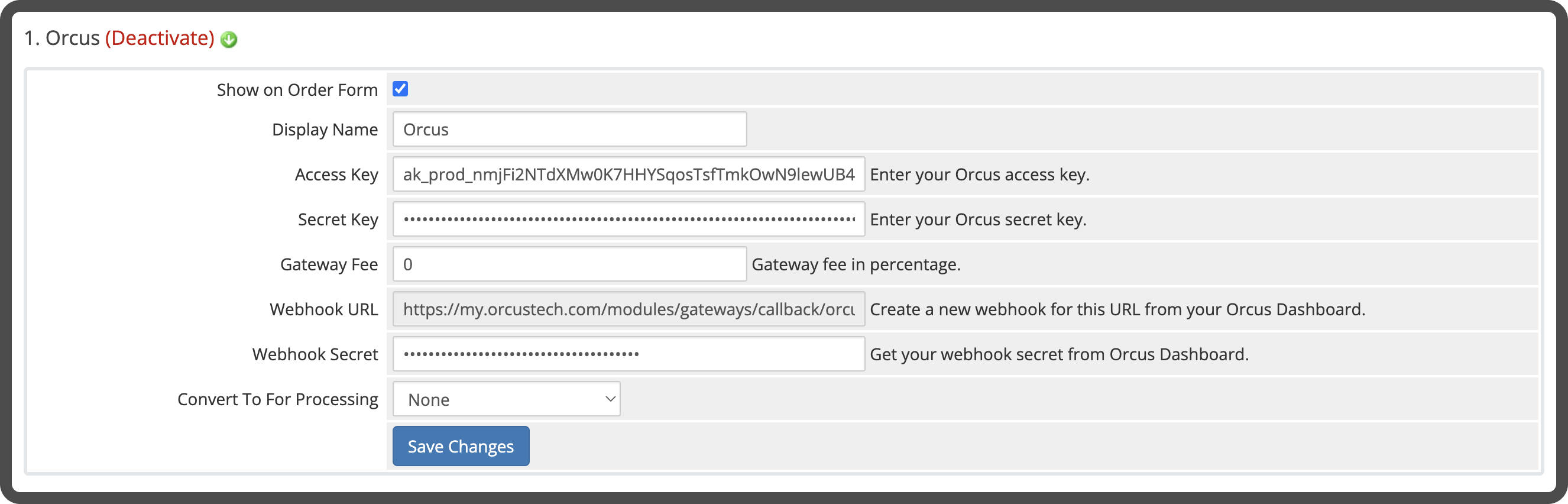
- Copy the Webhook URL shown on the page.
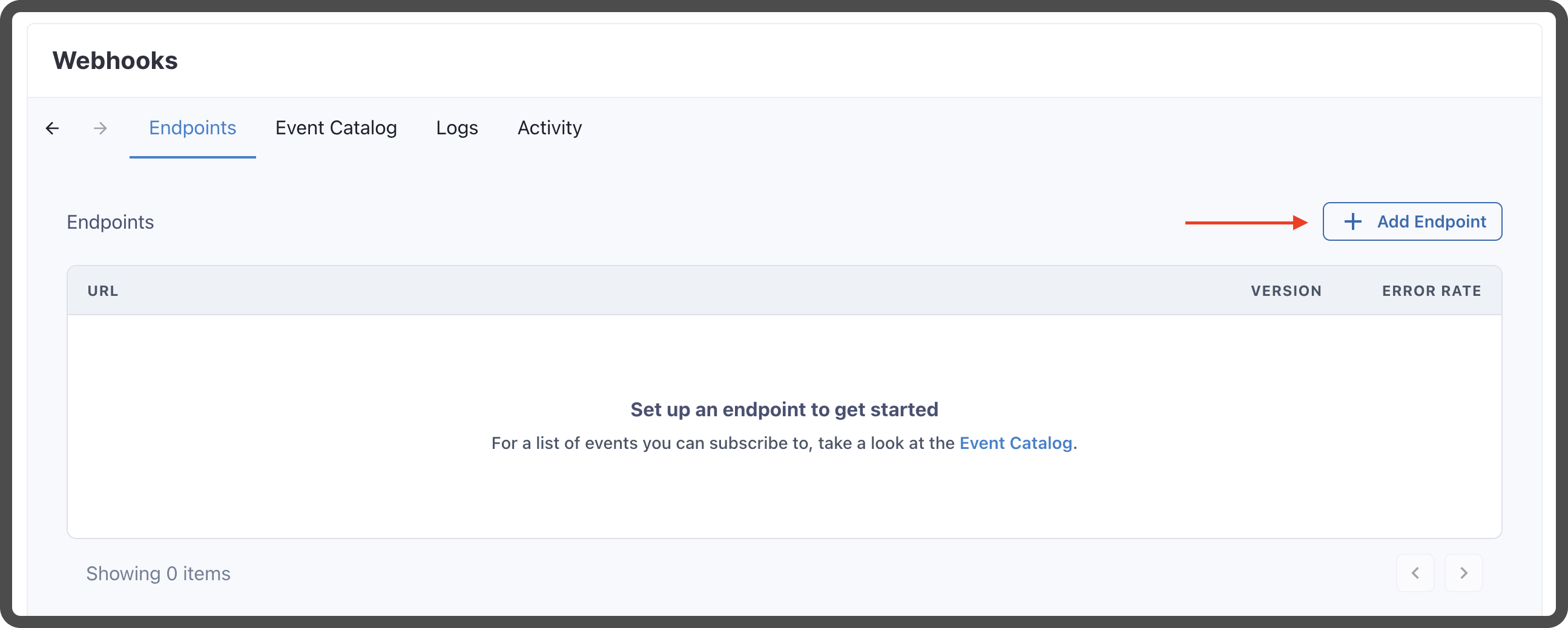
- Go to Orcus webhooks setting and click Add Endpoint.
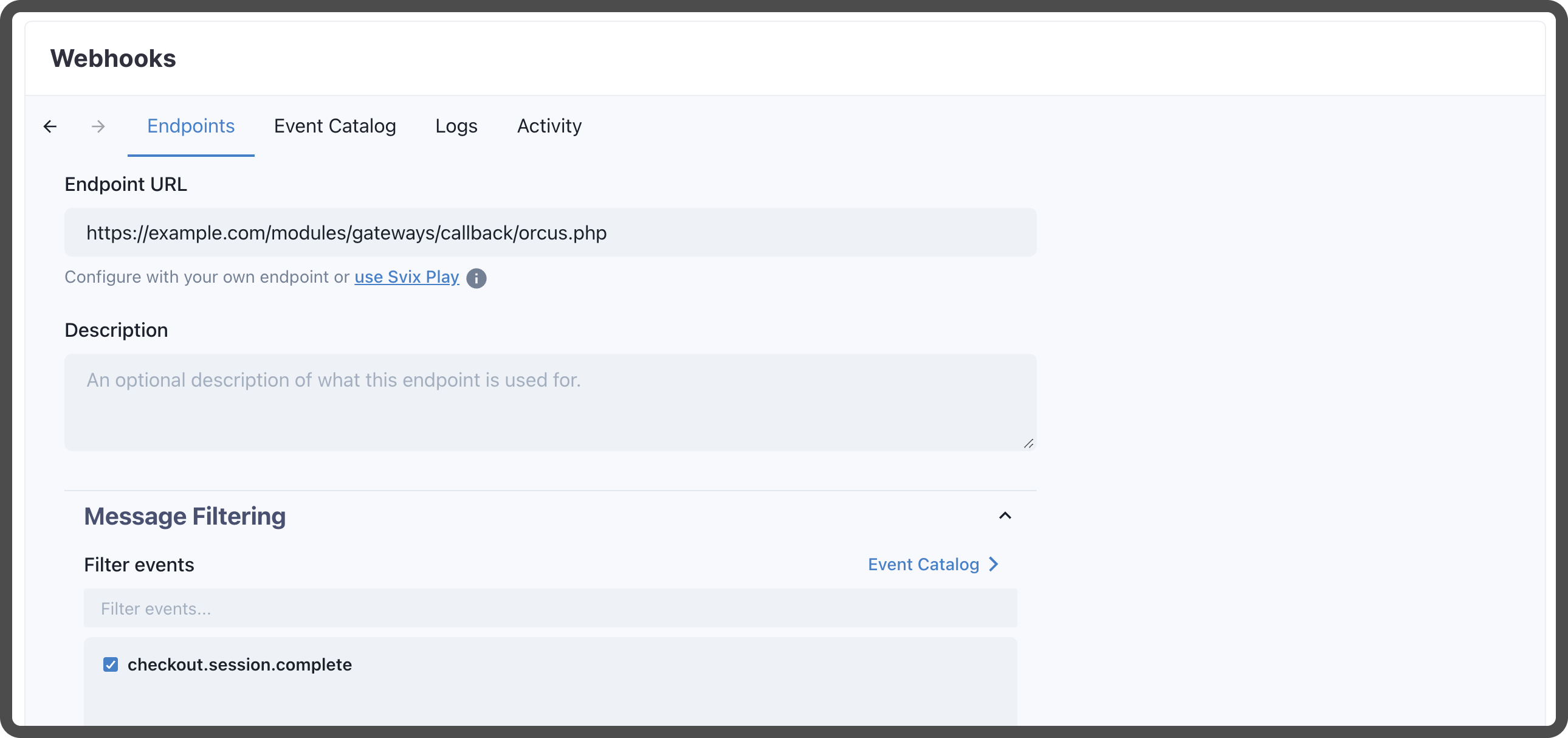
- Paste the Webhook URL you copied earlier, select
checkout.session.completefrom the Event, and click Create.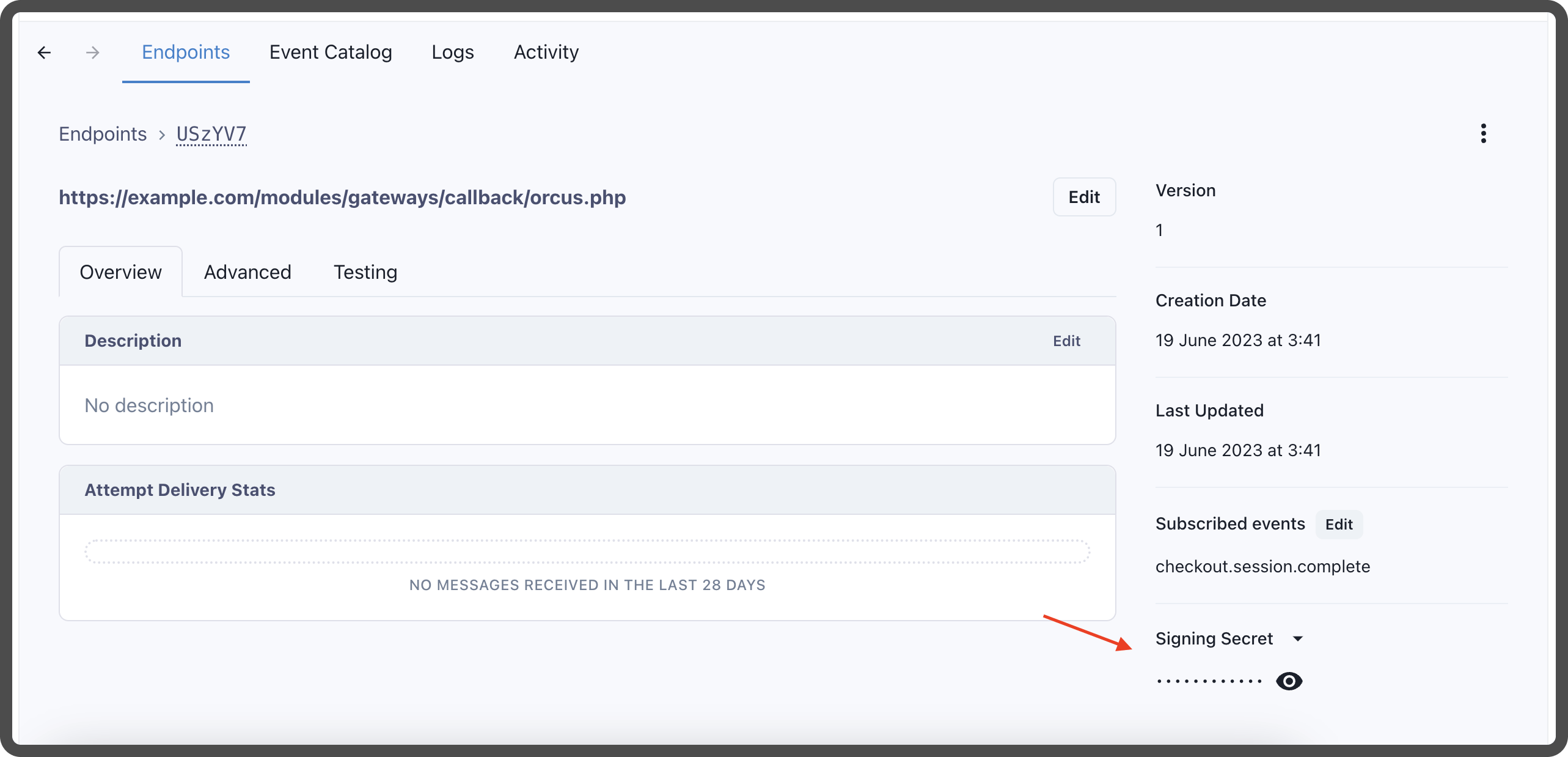
- After creating the webhook, you will get a Signing Secret. Copy the Signing Secret and paste it in the Webhook Secret field in the Orcus module configuration page.
- Click Save Changes.
4. Testing the Orcus Module
- Go to your WHMCS client area (usually found at
yourdomain.com/whmcs/clientarea.php). - Try making a payment using the Orcus gateway.
- Confirm that everything works as expected.